
Pitch, Warp And The T Button
LibreTracks separates three concepts that often get mixed up: the timeline tempo (BPM), region warp, and region transpose (pitch). The model is the same one Ableton Live uses, so if you have used Warp there the mental map carries over.
This page explains exactly what each control does, how they interact, and what to expect on the timeline grid.
The Three Controls
Section titled “The Three Controls”Timeline Tempo (BPM)
Section titled “Timeline Tempo (BPM)”The BPM editor in the top bar and the tempo markers on the timeline both belong to the timeline, not to any region or track. They define how many beats fit in a second of the rendered arrangement.
- Editing the BPM at the start of the song changes the global BPM.
- Editing the BPM inside a region governed by a tempo marker updates that marker.
- Tap Tempo writes to whichever of those is active under the current playhead position.
If you change the BPM while a region has warp on, the region’s audio will time-stretch to match the new tempo. If warp is off, the BPM change does not affect existing audio; it only changes the grid.
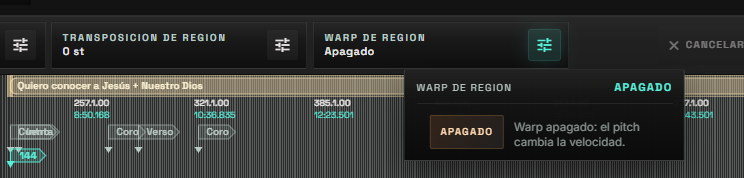
Region Warp
Section titled “Region Warp”Warp is a property of a song region. Activating it tells the engine to time-stretch every clip overlapping that region so the audio’s original BPM (warp source BPM) aligns with the timeline’s effective BPM.
- When you activate warp, LibreTracks records the current effective BPM as
warp source BPM— this is the BPM the audio was recorded/exported at. - The visible duration of the region becomes
source_duration / (target_BPM / source_BPM). - Pitch is preserved. Warp on its own does not transpose anything.
Warp is implemented with the Bungee time-stretcher and runs inside the audio engine. It is CPU-intensive on heavily layered sessions; see Live Control Flow for guidance on when to enable it.
Region Transpose (Pitch)
Section titled “Region Transpose (Pitch)”Region Transpose shifts the pitch of a region in semitones, -12 to +12. Its visible effect depends on whether Warp is on for that region:
- Warp off + transpose ≠ 0 → Varispeed. Pitch is speed: like turning a tape faster or slower, raising the pitch shrinks audible duration, lowering it expands it. The clip, the region, and every marker after it slide accordingly so the grid stays consistent.
- Warp on + transpose ≠ 0 → Pitch + Warp. Bungee transposes pitch while keeping duration fixed to whatever the warp ratio dictates. You can change key without changing length.
The hint label under the warp toggle mirrors this:
Warp off: pitch changes speed. Warp on: pitch preserves duration.
The Per-Track T Toggle
Section titled “The Per-Track T Toggle”Each track header has a T button that toggles transpose enable for that track. The semantics depend on whether warp is active for the region the playhead is in:
| Warp state | T enabled | T disabled |
|---|---|---|
| Warp off | Track follows pitch | Track follows pitch (the T toggle is ignored) |
| Warp on | Track follows pitch | Track ignores pitch, still follows warp’s stretch |
Why is T disabled ignored under warp off? Because under varispeed, pitch is duration. If the rest of the song shortens and one track keeps its original length, it desyncs immediately. To keep the timeline coherent for everybody, no-warp pitched regions force every track to follow varispeed.
Under warp on, Bungee decouples pitch from duration, so a T disabled track can play at original pitch while still aligning with the rest of the band on the grid. That’s the right mode for a click pista, a guide track, or anything that should stay in its recorded key while the rest of the show transposes.
Decision Table
Section titled “Decision Table”The engine picks one of three render paths per clip per block. You will not see this directly, but it helps explain what you hear:
| Warp | Pitch | Track T | Render path | Effect |
|---|---|---|---|---|
| off | 0 | any | Direct | Original audio, no DSP. |
| off | ≠ 0 | enabled | Varispeed | Pitch changes, duration changes. |
| off | ≠ 0 | disabled | Varispeed | Same as above. T is ignored under no-warp. |
| on | 0 | any | Bungee warp | Duration follows warp ratio; pitch preserved. |
| on | ≠ 0 | enabled | Bungee both | Pitch shifts, duration follows warp. |
| on | ≠ 0 | disabled | Bungee warp | No pitch on this track, duration follows warp. |
Timeline Grid Behavior
Section titled “Timeline Grid Behavior”Markers, region boundaries, tempo markers, and time signature markers are all stored in source time (the audio file’s original timeline). When you click on the timeline to create or move any of these, LibreTracks converts your click from the visible timeline back into source time so the marker lands exactly where you pointed at — even inside or after a stretched region.
This matters when you have several regions with different warp ratios or varispeed amounts: the visible clip widths shift, but everything you place stays anchored to musical position, not to raw seconds.
Practical Workflow
Section titled “Practical Workflow”For most live shows the simplest mental model is:
- Build the session at the song’s recorded BPM with warp off.
- If the band wants the song faster or slower without changing key, enable
Region Warpand edit the BPM. - If the band wants a different key, change
Region Transpose. With warp on it is a clean key change; with warp off it doubles as a half-speed/double-speed effect. - Use the per-track
Ttoggle only when warp is on, to keep a click or guide track in its original key while the rest follow the new key.