Core Concepts
Songs — The Unit You Work With
Section titled “Songs — The Unit You Work With”LibreTracks is built around the song as the unit of work. A project is a sequence of songs; everything else — clips, tempo markers, time-signature changes, section markers — exists inside a song. There is no “loose audio” floating in the project: every clip belongs to exactly one song, and the engine enforces this at every edit.
This is the single most important thing to internalise before reading the rest. Once you think in songs:
- Adding material to the show means creating or importing a song, not dropping audio onto a track.
- Reordering the setlist means moving songs, which carries their clips, markers, tempo and meter changes along atomically.
- Tempo, key and master gain are per-song properties (
Region Warp,Region Transpose, per-song master fader), not global ones. - Backing up or sharing a piece of the show means exporting a
.ltpkgof one or more songs, which round-trips into any other project.
The reference for how songs behave as containers — boundaries, effective BPM, transpose, warp — is the Song Regions section below. The song-first workflow itself (songs as columns, drag-and-drop of audio and packages, per-song mixer) lives in Compact View.
Library And Assets
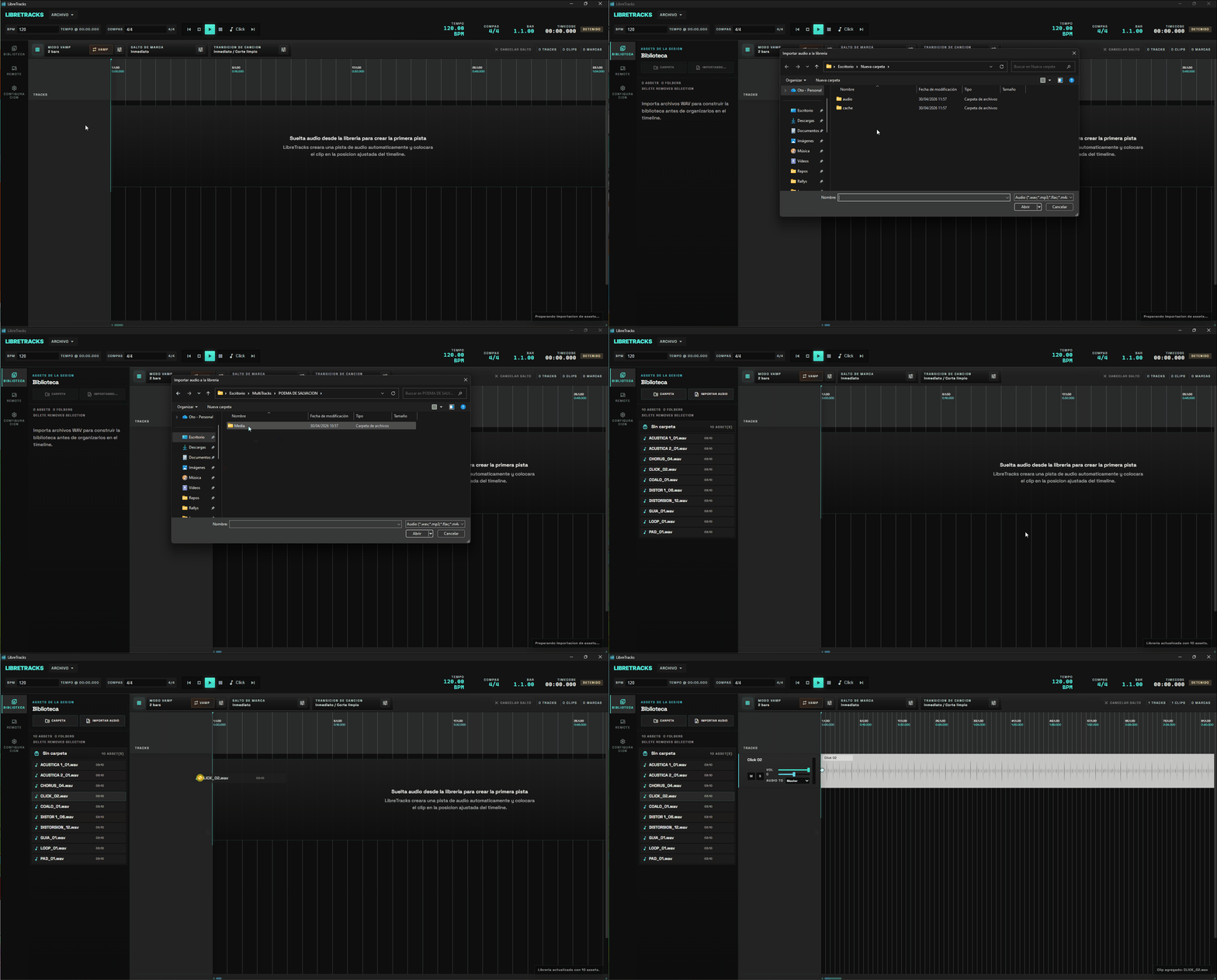
Section titled “Library And Assets”Library is the preparation area for show audio. Import one or more audio files, including FLAC alongside the usual WAV, AIFF, and MP3 sources, then drag them onto the timeline when you are ready to arrange. You can also keep assets grouped in virtual folders and bring in prepared song packages when building a larger session.
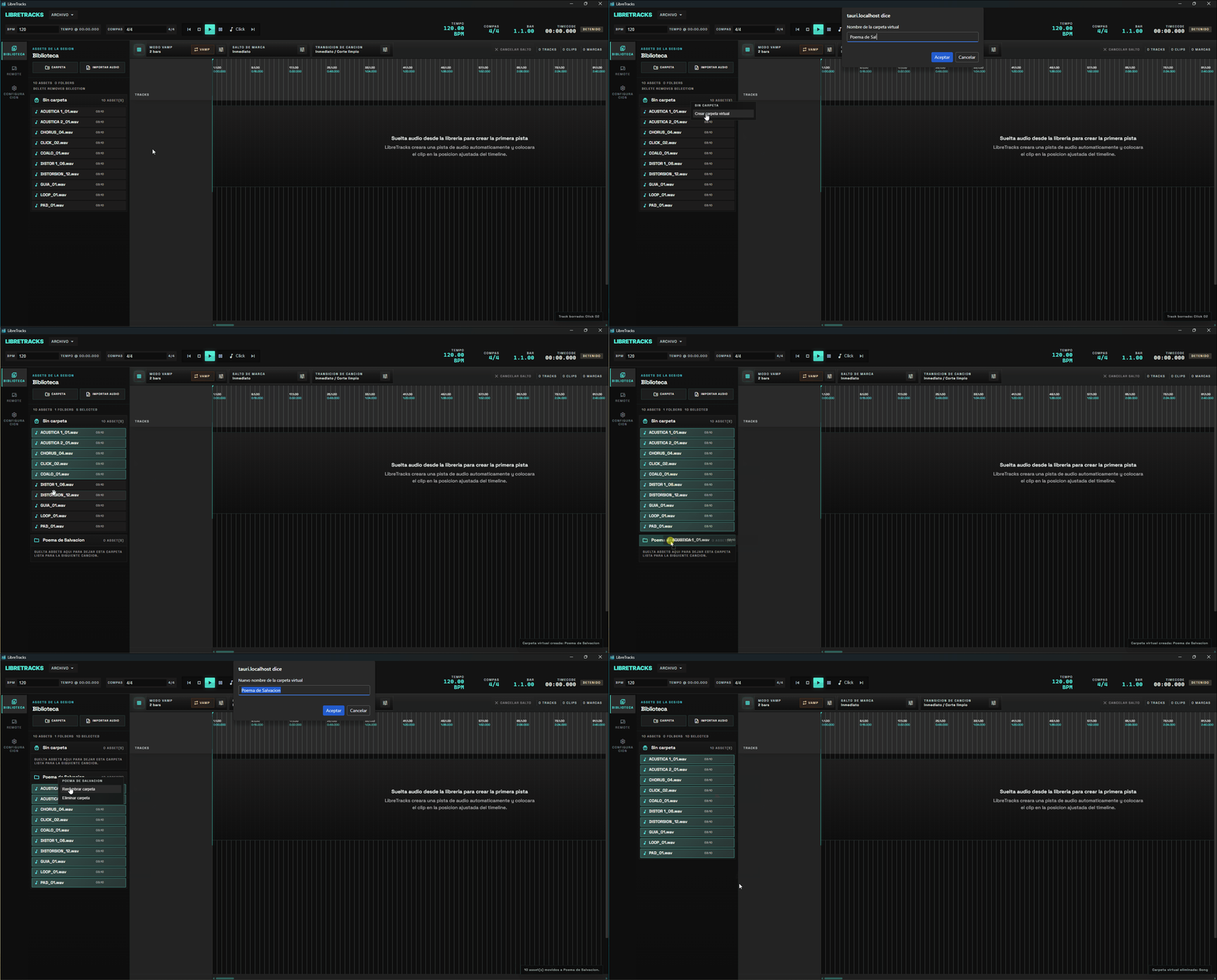
Virtual folders group assets by song, set, scene, section, or instrumentation without moving the original files. A practical live setup is one folder per song or show block.
Audio Tracks And Folder Tracks
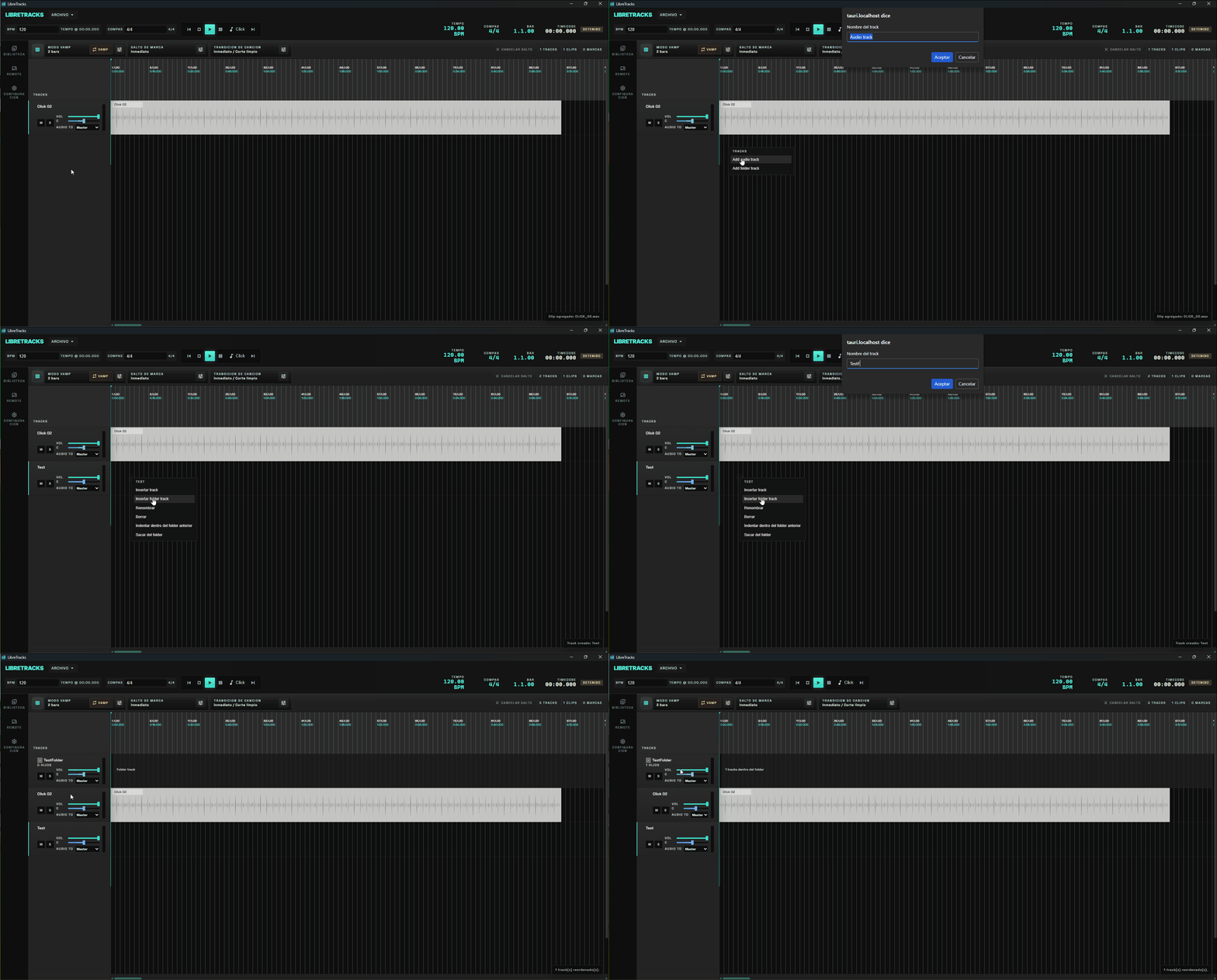
Section titled “Audio Tracks And Folder Tracks”Audio trackholds clips and produces playback.Folder trackorganizes child tracks and provides grouped control.
Use folder tracks for related stems such as drums, band tracks, choirs, backing vocals, or auxiliary playback. Use audio tracks for lanes that contain clips.
Folder tracks can also own the output route for the whole group. Child tracks may stay on Inherited (Folder) so the folder decides whether the group goes to Master or to a cue output, which is useful for click, guide, or monitor buses.
Auto-Created Tracks
Section titled “Auto-Created Tracks”Tracks that the system created on your behalf — typically because you dropped an audio file onto an empty area in the Compact View — carry an internal auto_created flag. They behave like any other track for editing, but they are removed automatically the moment they lose their last clip. Manually-created tracks are never deleted on their own, even when empty. This keeps the project clean while you experiment with rapid drops without committing to keeping every lane that briefly held a clip.
Clips And Timeline Editing
Section titled “Clips And Timeline Editing”Clips are non-destructive timeline references to source audio. You can drag assets from the Library, drop external audio directly onto the timeline, move clips, duplicate repeated sections, and split clips at the cursor without rewriting the original WAV.
Select clips and use Ctrl + C / Ctrl + V to copy and paste them. Use Ctrl + D when you want to duplicate the selected clips directly at the next timeline position.
Drag a clip edge to resize its region without changing the original audio file. When Snap to Grid is enabled, hold Alt while moving the playhead to place it freely without snapping to the grid.
Tracks and clips can be color-coded from the context menu. Multi-selected tracks can receive the same color in one action, so large shows are easier to organize by song, section, or role.
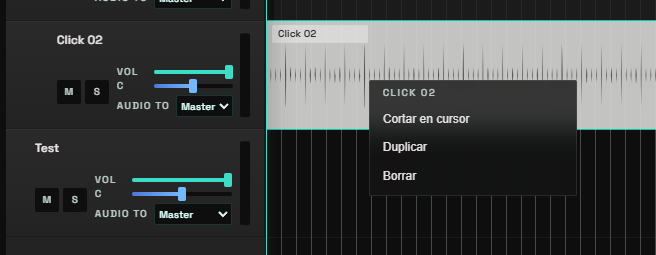
Snap to Grid keeps cursor movement, clips, and edits aligned to musical divisions. Disable it only when a free placement is needed.
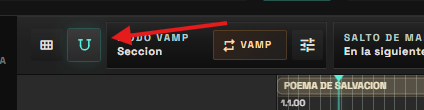
Song Regions — The Primary Container
Section titled “Song Regions — The Primary Container”A song region is the primary container in a LibreTracks project. The session holds songs; songs hold clips; clips live in tracks. Every clip belongs to exactly one song region and is not allowed to cross its end boundary — the engine rejects any move that would break that invariant.
What follows from this:
- Songs can be reordered, renamed, exported, and deleted as a unit. Deleting a song removes the clips inside it and the tempo markers in the same range, and prunes any auto-created tracks that go empty as a result.
- A song’s effective BPM comes from the nearest preceding tempo marker at its start; if there is none, the project’s global BPM applies. Creating an empty song automatically pins a tempo marker at its
startso the new song does not inherit the previous song’s tempo. - Each region also carries its own transpose value and an independent warp toggle, so the same arrangement can move up or down in semitones — with or without changing duration — without duplicating tracks or clips. The exact interaction between these controls is documented in Pitch, Warp & The T Button.
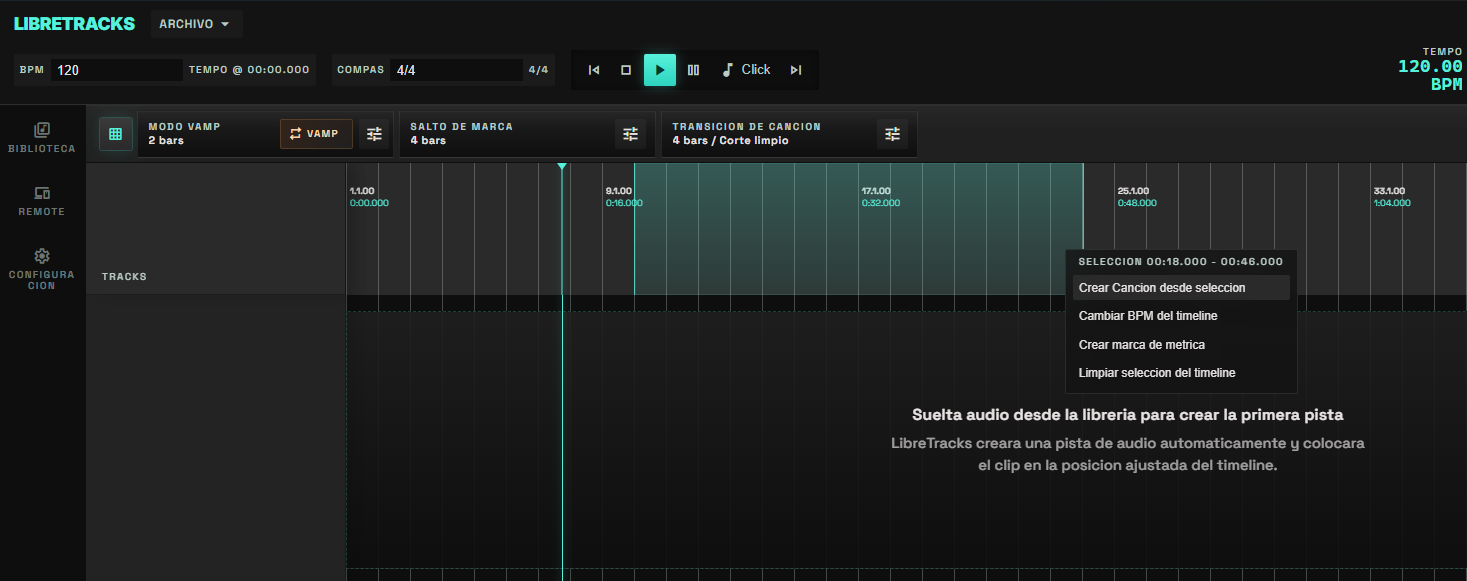
Create a song region by selecting a range on the timeline, right-clicking it, and choosing Create song from selection. You can also create an empty song from the Compact View’s + New song button, or import a previously-exported .ltpkg package as a new song appended at the end. After that, adjust Region Transpose and Region Warp from the transport view when the song needs a different key or tempo.
Moving a whole song
Section titled “Moving a whole song”In the DAW view you can drag the song’s name band (the amber strip above the tracks) to translate the entire song across the timeline. The gesture moves the region, the clips, tempo markers, section markers and time-signature markers together, so the music stays intact — only its absolute position in the project changes.
Rules:
- Initiate the drag with a left-click on the centre of the band. The edges still act as resize handles.
- If
Snap to Gridis on, the song’s start snaps to the nearest downbeat. HoldShiftwhile dragging to bypass snap and place it freely. - If the destination would overlap another song, the move is rejected with a clear message and the song stays put. Move or reorder the neighbour first.
- The whole thing runs as one atomic transaction: one snapshot, one undo entry.
For the full song-first workflow — songs as columns, per-song master fader, drag-and-drop of audio and packages, and track multi-selection in the mixer — see Compact View.
Markers And Meter Changes
Section titled “Markers And Meter Changes”Markers define musical destinations such as Intro, Verse, Chorus, Bridge, Vamp, and Outro. Create them from the ruler with Create Marker.
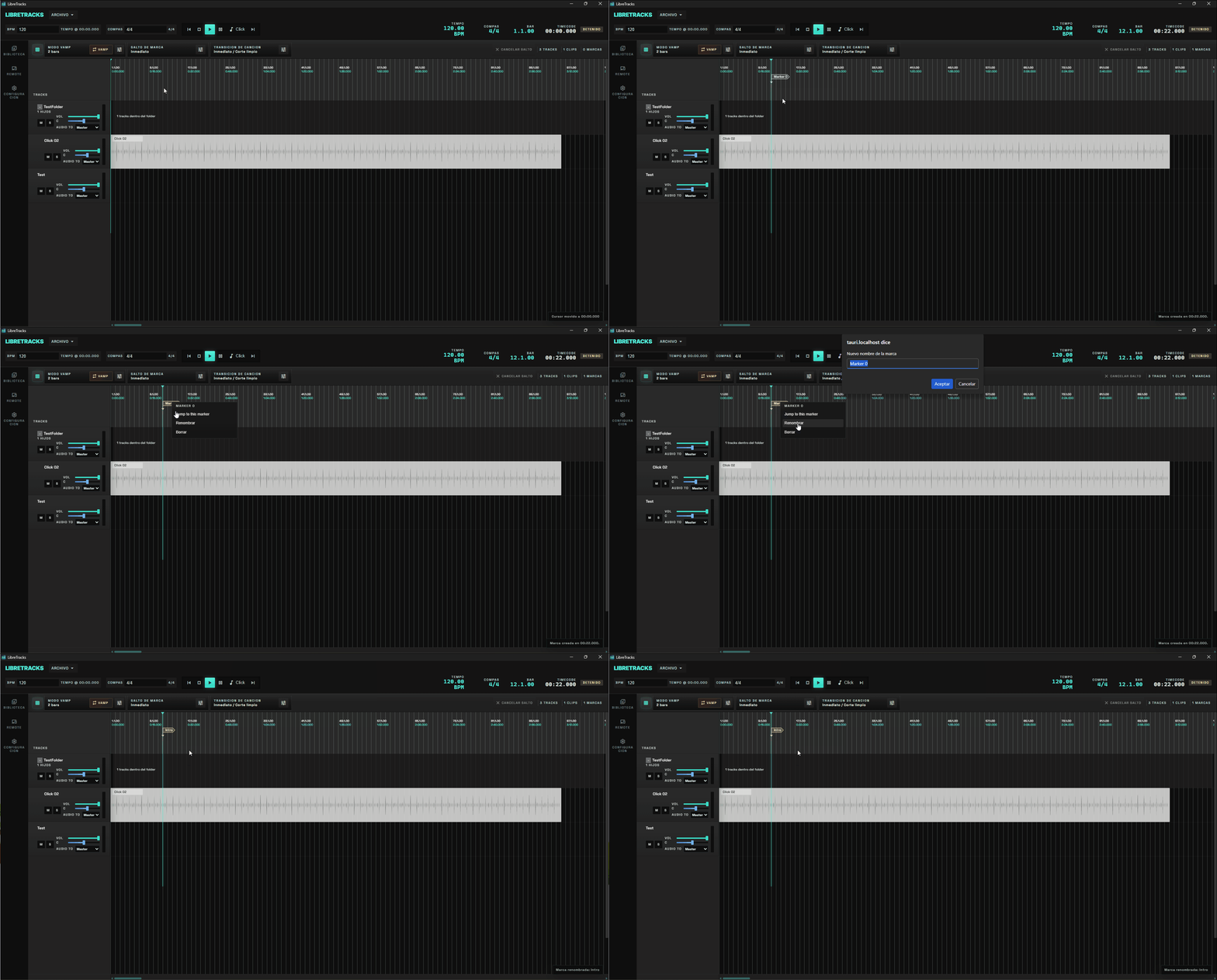
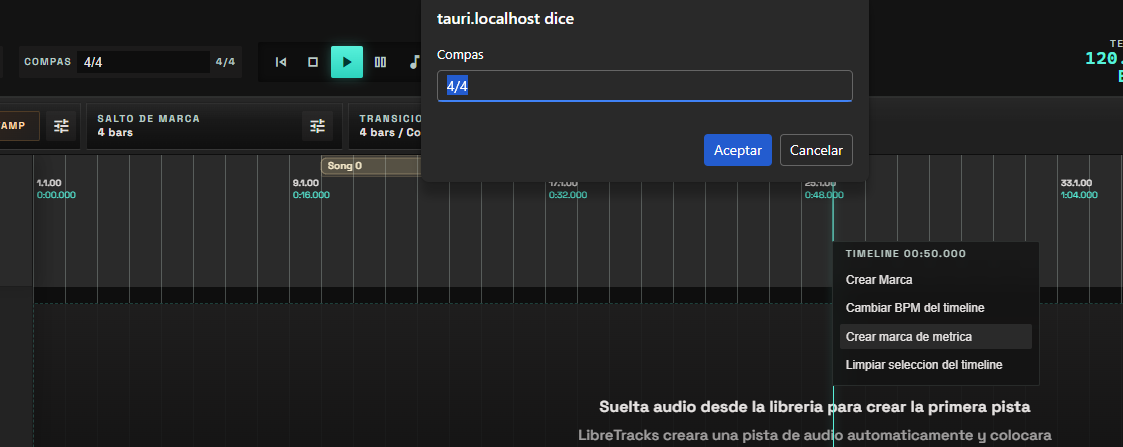
Time signature markers keep bar-based operations correct when a song changes meter. Create them from the timeline header with Create Meter Marker, then choose the new meter.