
Compact View
The Compact View is a second projection of the same project. The DAW view (linear timeline) and the compact view share one underlying model: anything you change in one shows up immediately in the other.
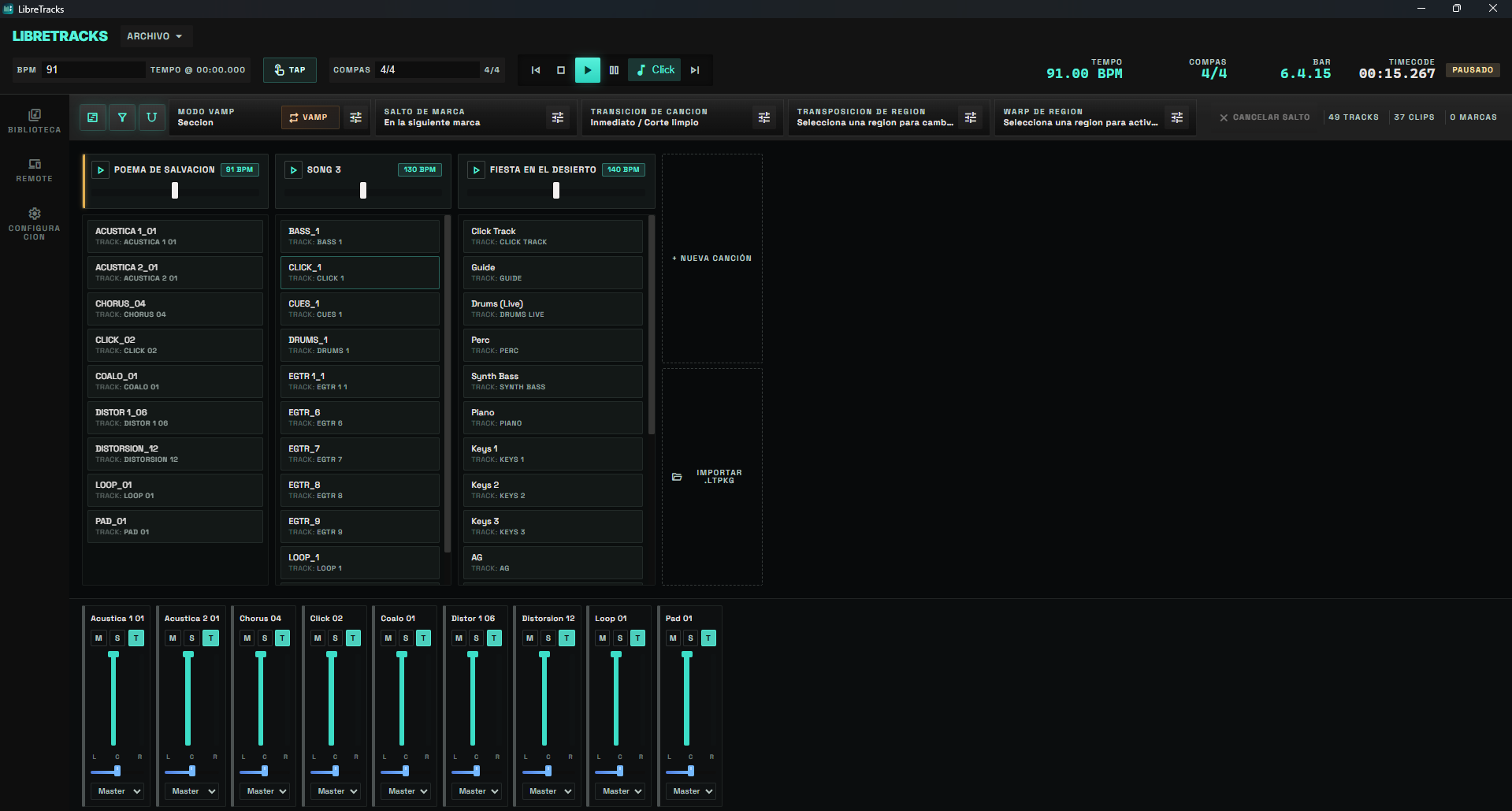
Toggle between them with Tab or with the view_module / view_timeline button in the toolbar.
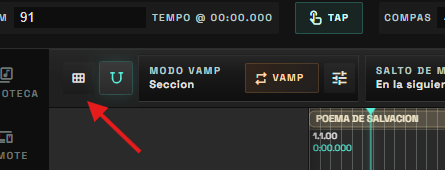
When To Use Each View
Section titled “When To Use Each View”DAW view: edit the arrangement, align waveforms, place markers, tweak fades, mix with everything visible at once.Compact view: rehearse the set, jump between songs, adjust the mix during the show, see at a glance which song every clip belongs to, and quickly import or export songs.
The Song As The Primary Object
Section titled “The Song As The Primary Object”In this model, a song (song region) is the primary container of the project, not the track. Every clip lives inside exactly one song; if you drag it past the boundary of its region, the engine rejects the move to preserve the invariant. Practical consequences:
- Songs can be reordered, renamed, exported and deleted as a unit. Deleting a song also deletes the clips that lived inside it and the tempo markers placed in its range.
- A song’s effective BPM is the value of the closest preceding tempo marker at its start position; with no marker, the global project BPM applies. Creating a new song automatically pins a tempo marker at its
startso it doesn’t inherit the previous song’s tempo. - Tracks are still the vertical lane where clips live, but they can now be auto-created when an asset lands in the compact view, and removed automatically when they go empty (see below).
Zones In The Compact View
Section titled “Zones In The Compact View”The compact view is split into two clearly separated vertical zones:
1) Top Strip — Songs
Section titled “1) Top Strip — Songs”Each song in the project is a horizontal column. The column has three parts:
Headerwith the song name, effective BPM, Play button, and a per-song Master fader + meter.Clip stackordered vertically by track position in the project — reading top to bottom matches what the DAW view will show when the playhead enters that song. Each cell shows the clip name and the track it belongs to.Left edgewith a pulsing amber ribbon when the playhead is in that song (independent of selection).
Selecting a song
Section titled “Selecting a song”Clicking anywhere on the header (except Play or the fader) selects the region. That binds the Region Transposition and Region Warp groups in the top toolbar to that song. You’ll see a full teal border around the header. The amber playhead ribbon and the teal selection border are intentionally visually distinct: amber means “playing here”, teal means “this song is the one the region controls are bound to”.
The
Mastercontrol in the top toolbar does not appear in compact view because every column already has its own Master fader with meter. It’s still available from the DAW view.
Per-song Play button
Section titled “Per-song Play button”Every song header has a Play button. Its behaviour depends on the transport state:
- Transport stopped or paused: the button jumps the playhead to the song’s start and starts playback immediately. No transition wait — the equivalent of “play this song right now”.
- Transport already playing: the button schedules a song jump that respects the global transition mode configured in the toolbar (
Immediate,Next marker,Region end, etc.). Same path theShift+digitshortcut takes.
In live use this means hitting Play on a song always makes it sound: if nothing was playing it starts; if something was playing it performs the configured transition.
Song context menu
Section titled “Song context menu”Right-click the header opens a menu with:
Rename songChange BPM…— inserts or replaces the tempo marker at the start of the region. It does not touch the project’s global BPM.Export song— saves a.ltpkgpackage, with the same option to include or omit audio files as the equivalent right-click in the DAW view.Delete song— destructive. Removes the region, its clips, tempo markers in its range, and prunes auto-created tracks that go empty.
Creating or importing songs
Section titled “Creating or importing songs”At the end of the strip there are two buttons:
+ New song— creates an empty song at the end of the project, anchored to the global BPM.Import .ltpkg— opens the file dialog filtered to.ltpkgand appends the imported song at the end.
You can also drag a .ltpkg from the OS file explorer anywhere over the strip. While dragging you’ll see a dashed teal ghost column to the right showing where the import will land, plus a subtle highlight on the whole strip. If the file is unsupported (wrong extension or mixed types), no feedback is painted and the drop is rejected with a status message.
2) Bottom Strip — Compact Mixer
Section titled “2) Bottom Strip — Compact Mixer”A horizontal mixer with one column per project track: name, M/S/T toggles, vertical teal fader with post-fader meter, blue pan slider, and routing selector. folder tracks get a darker background and a thicker left accent; child tracks show a ↳ Folder name hint below the name and a thin ribbon in the parent’s colour — Reaper-style. If a track has an assigned colour, that colour is used as the strip accent.
”Active song only” filter
Section titled “”Active song only” filter”A funnel button appears in the top toolbar (next to the view-toggle icon) only in compact mode. When activated, the mixer hides the strips for tracks that don’t have any clip inside the song the playhead is on. Ancestor folders of the visible tracks stay in place to preserve the hierarchy, so a child track never appears orphaned without its parent folder.
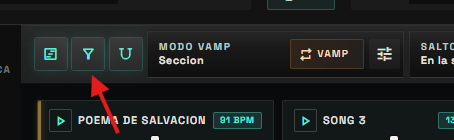
Concrete behaviour:
- Filter off (default): the full mixer is shown.
- Filter on + playhead inside a song: only tracks with clips in that song + their ancestor folders are visible.
- Filter on + playhead outside any song (leading silence, gap between regions): the filter doesn’t trim, every track is shown. It re-engages automatically when the playhead enters a song again.
- No songs in the project: the button is disabled.
Filter state is persisted across sessions via localStorage.
Selecting tracks (multi-selection)
Section titled “Selecting tracks (multi-selection)”Clicking on the strip name or the ↳ parent hint selects the track. Same convention as the DAW track header:
Click— selects only that track.Ctrl + Click(orCmd + Click) — adds / removes that track from the current selection.Shift + Click— selects the range between the last anchor track and this one.
Clicking on controls (M/S/T, fader, pan, routing) does not select — those controls keep their own semantics.
Selection is shared with the DAW view: if you pick a track in the compact mixer and switch back to the DAW view, that track is still selected on the header.
Reordering tracks with drag-and-drop
Section titled “Reordering tracks with drag-and-drop”Drag from the strip’s header (name or parent hint) to move one or more tracks. While dragging:
- The dragged strip fades to ~55% opacity and translates horizontally under the pointer.
- The target strip shows a vertical teal line on the left (drop before) or right (drop after).
- If the target strip is a folder and you hover over the central zone (30%–70% of its width), the whole strip lights up teal: dropping there moves the tracks into that folder.
If multiple tracks are selected and you drag one of them, all selected tracks move together in a single operation (one snapshot, one history entry).
The same multi-select + drag works in the DAW track header pane, but vertically. The reorder backend (
moveTrack) is shared by both views.
Track context menu
Section titled “Track context menu”Right-clicking a strip opens the same track menu the DAW view uses (rename, colour, insert, delete, move in/out of folder, etc.). Anything you change here is reflected immediately in the other view.
Auto-Created Tracks And Automatic Cleanup
Section titled “Auto-Created Tracks And Automatic Cleanup”When you drag audio onto a song column (from the Library or from the OS), each file creates its own clip and its own track if there’s no existing track to drop it on. These tracks carry an internal auto_created: true flag that distinguishes them from tracks the user created manually.
Automatic cleanup works like this:
- An auto-created track is deleted the moment it goes empty, regardless of what emptied it: deleting the clip, moving the clip to another track, or deleting the song that contained it.
- Manually-created tracks are never deleted on their own, even when empty.
This prevents residual tracks from piling up while you experiment with rapid drops in the compact view. If you want to keep an empty track for future clips, create it manually from the track menu instead of letting one auto-generate.
Drop Targets And Visual Feedback
Section titled “Drop Targets And Visual Feedback”The compact view accepts three drop origins:
| Origin | Where accepted | What happens |
|---|---|---|
| Library (internal drag) | Onto a song column | Creates clips + auto-tracks inside that song |
| OS file explorer (audio) | Onto a song column | Creates clips + auto-tracks inside that song |
OS file explorer (.ltpkg) | Anywhere over the strip | Imports the song at the end of the project |
| Any unsupported file | — | Drop rejected with a status message |
During dragover you’ll see different feedback depending on the case:
- Audio over a song column: as many dashed teal placeholders as files you’re about to drop, inside the column’s clip stack. The stack background tints light teal.
.ltpkgover the strip: a ghost column appears at the end with alibrary_musicicon and the text “Import here”.- Unsupported file: nothing is painted (the system knows the drop will be rejected).
Snap, Magnet And Shortcuts
Section titled “Snap, Magnet And Shortcuts”The Snap to Grid button in the toolbar now uses a magnet icon, visually distinct from the compact-view toggle icon. When snap is off, the magnet is crossed out with a diagonal slash.
Related shortcuts:
Tab— toggle between DAW and compact view.Shift + number— jump to a song (respects the project-wide transition mode).- The transposition / warp toolbar bars target the song you’ve selected in the compact view (or the playhead song if no explicit selection).
Status Banner
Section titled “Status Banner”The status banner in the bottom-right corner now auto-hides ~5 seconds after each action. If you need to re-read a message, hover the area before it fades.
Library: Persistent Folder State
Section titled “Library: Persistent Folder State”The expanded / collapsed state of Library folders is preserved across sessions. If you close and reopen the Library panel, folders you had collapsed stay collapsed. New folders are created expanded by default.
Important Invariants
Section titled “Important Invariants”Keep these in mind when designing your workflow:
- A clip belongs to exactly one song region and never crosses the end of its region.
- Deleting a song deletes its clips and the tempo markers in the same range.
- An auto-created track is removed when it loses its last clip. A manual track is not.
- A drop on a song column always creates clips inside that song. A
.ltpkgalways creates a new song at the end. - Faders, pan, M/S/T and routing on the compact mixer are the same mix the DAW view and the remote see: every change propagates instantly.