
Automation
The Automation track lets you place cues on the timeline that fire one or more actions at an exact point during playback. Use it to script a song that runs hands-free: jump to a section, drop a track out, push a fader, recall a mix scene, or wait a beat before the next move.
Each cue lives on its own automation track, shown as a diamond on the timeline at the moment it fires.
Adding An Automation Track
Section titled “Adding An Automation Track”Open the automation menu from the transport area and choose Add automation track. Right‑click anywhere on the lane (or use Create automation here) to drop a new cue at that position.
Editing A Cue
Section titled “Editing A Cue”Left‑click a cue’s diamond to open the editor; hovering shows a quick summary of everything the cue does. A cue is a small ordered list of actions — press Add action to build it up. Available actions:
- Jump to… — jump to a song region, a marker, or an exact position. The transition can be instant or a fade‑out over a set number of seconds. A jump is always the last action in the cue.
- Mute / unmute track — turn a track’s mute on or off.
- Solo / unsolo track — turn a track’s solo on or off.
- Volume / pan — set a track’s volume (0–100) and pan (L‑100 / R+100), with an optional smoothing time so the change ramps instead of snapping.
- Apply scene — recall a saved mix scene to reshape several tracks at once.
- Wait — pause the given number of seconds before the next action runs.
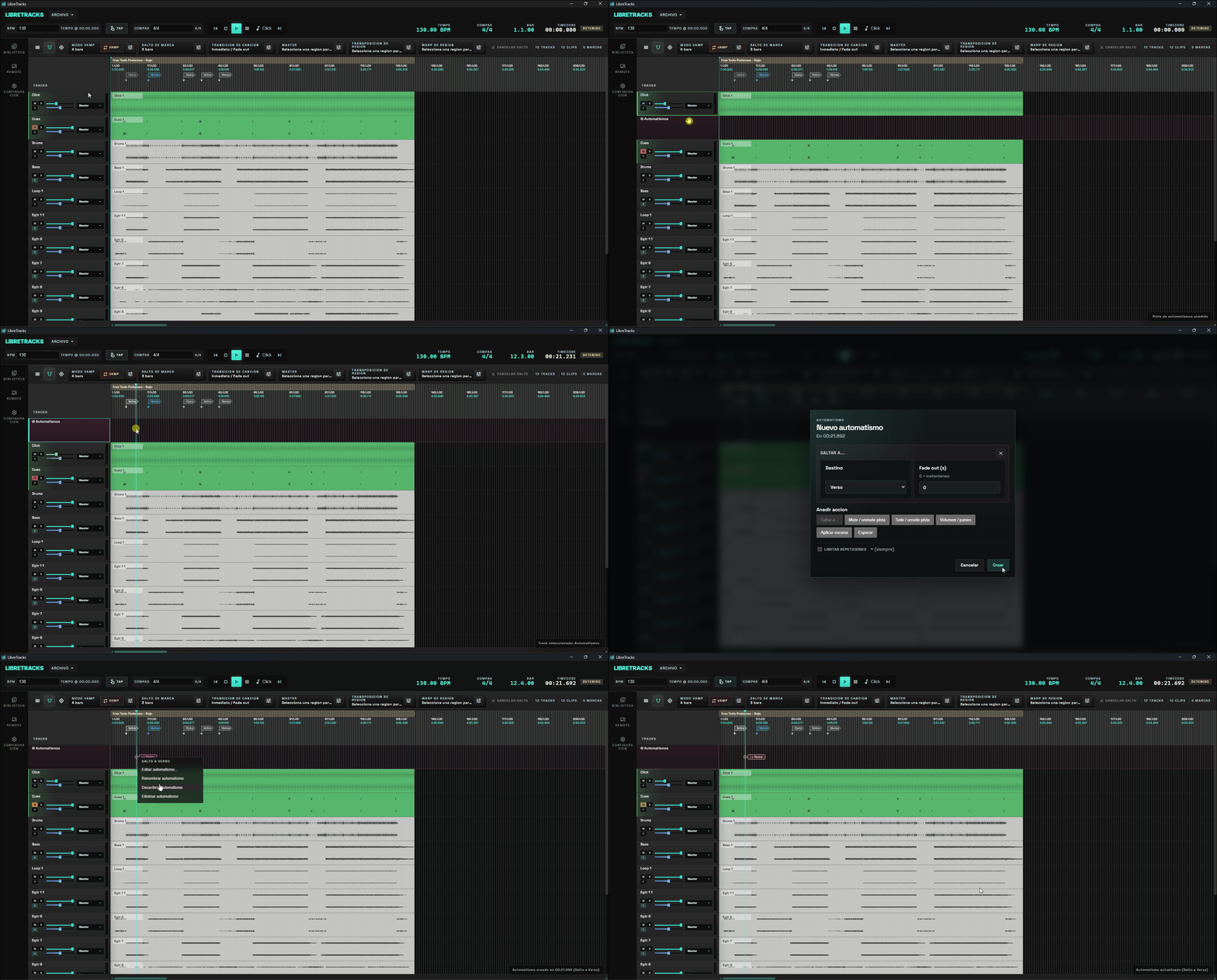
Repeats
Section titled “Repeats”By default a cue fires every time the playhead reaches it. Turn on Limit repeats to cap how many times it runs (for example, take a jump only the first two passes). A cue that has used up its repeats is shown as off in the lane.
Mix Scenes
Section titled “Mix Scenes”A mix scene is a saved set of per‑track overrides — volume, pan, mute, and solo — that you can apply instantly from an Apply scene action. Open Manage mix scenes… to create scenes, name them, and choose which tracks each one overrides.
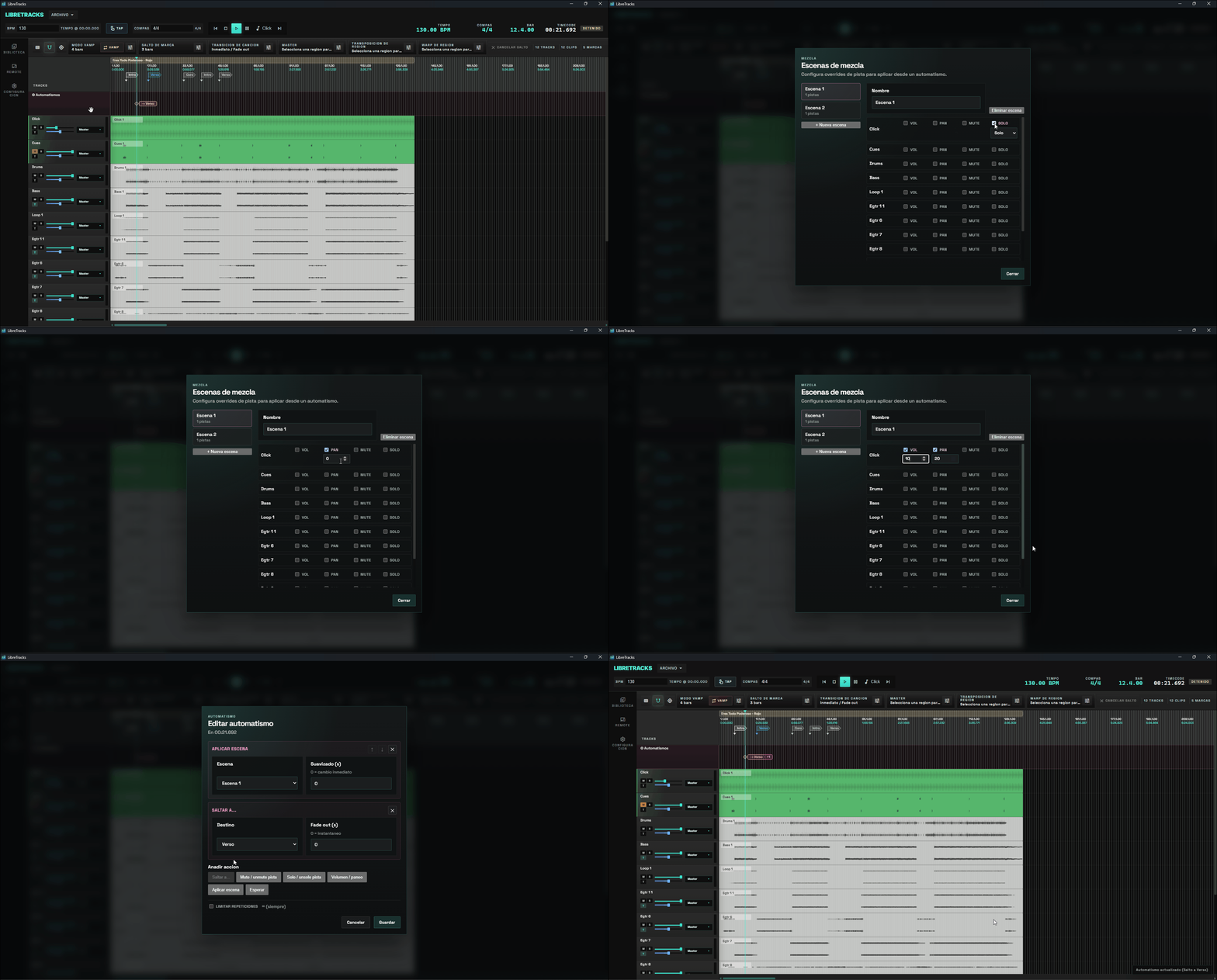
Scenes are ideal for big mix moves at a section boundary — for example, pulling the band down to just click and vocal for a breakdown, then restoring the full mix at the next cue.
- Pair a jump cue with the Voice Guide so the destination section is announced and counted in before the jump fires.
- Use a short smoothing time on volume/pan changes to avoid clicks when a fader moves during playback.
- See Live Control Flow for arming jumps manually from the transport, shortcuts, and the remote.